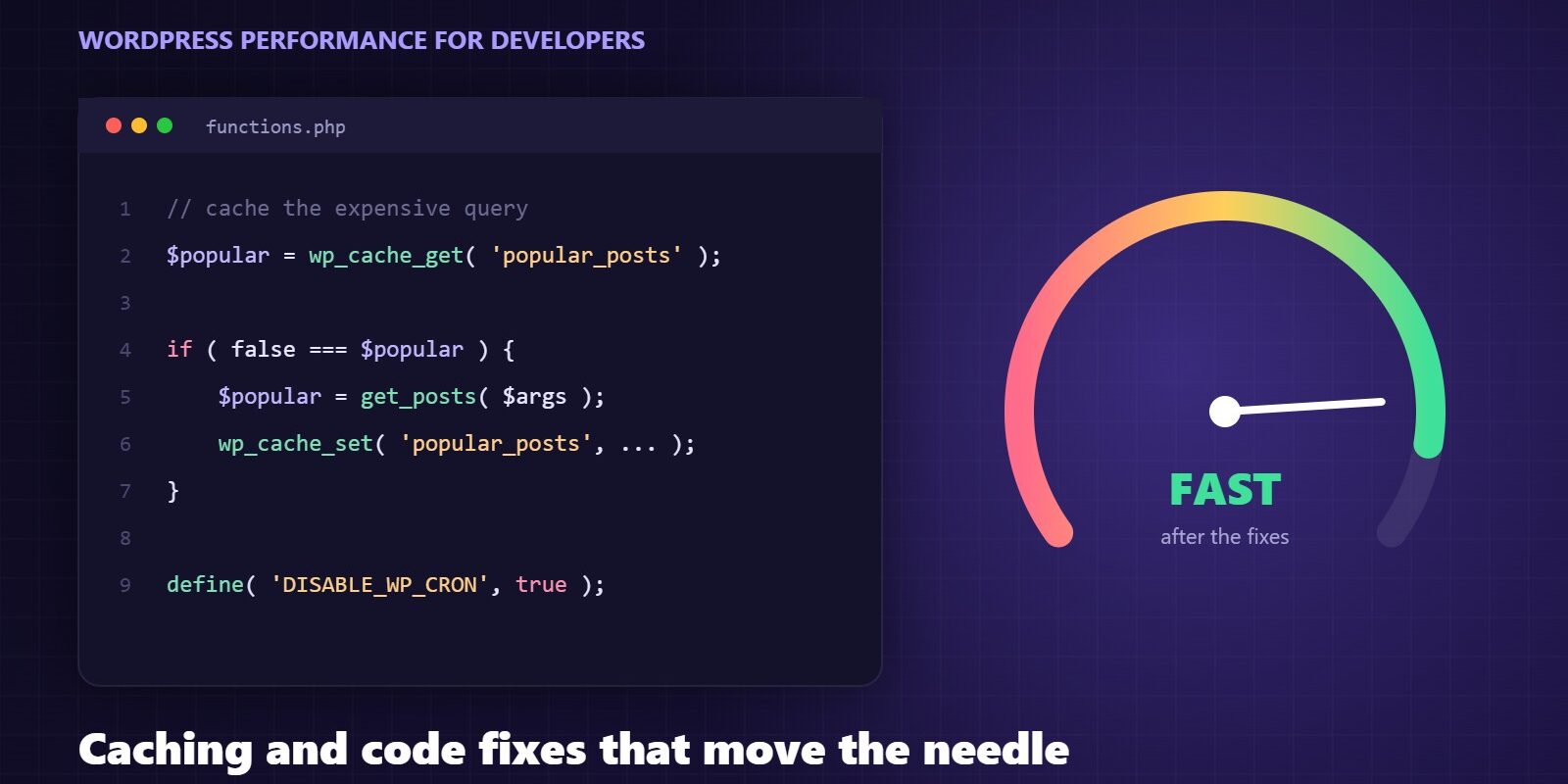
Most WordPress sites I open are slow for the same handful of reasons, and none of them is “you need a better caching plugin.” I have lost count of the sites running three cache plugins, a minify plugin, and an image optimizer — all fighting each other — while the database does hundreds of queries to render a single page.
WordPress performance work is not about stacking tools. It is about finding the actual bottleneck and fixing that one thing. Here is the order I work in, and the fixes that move the needle.
Measure first, or you are guessing
Before touching anything, I check what is actually slow. Is it time to first byte, is it render-blocking CSS and JavaScript, or is it the database? A slow TTFB and a slow render are different problems with different fixes, and a caching plugin only papers over one of them.
Query Monitor is the first thing I install on a slow site. It shows, per page load, how many database queries ran, which ones are slow, and which plugin or theme file triggered them. That one screen usually tells me where the next hour goes.
Google’s Core Web Vitals bar is public and worth keeping in mind: good LCP is under 2.5 seconds, good INP under 200 milliseconds, and good CLS under 0.1. If the site is nowhere near those numbers, the fix is rarely cosmetic.
Caching: page cache is the floor, object cache is the fix
A page cache helps anonymous visitors. It does almost nothing for logged-in users, WooCommerce carts, or anything dynamic — and most business sites have at least some of that.
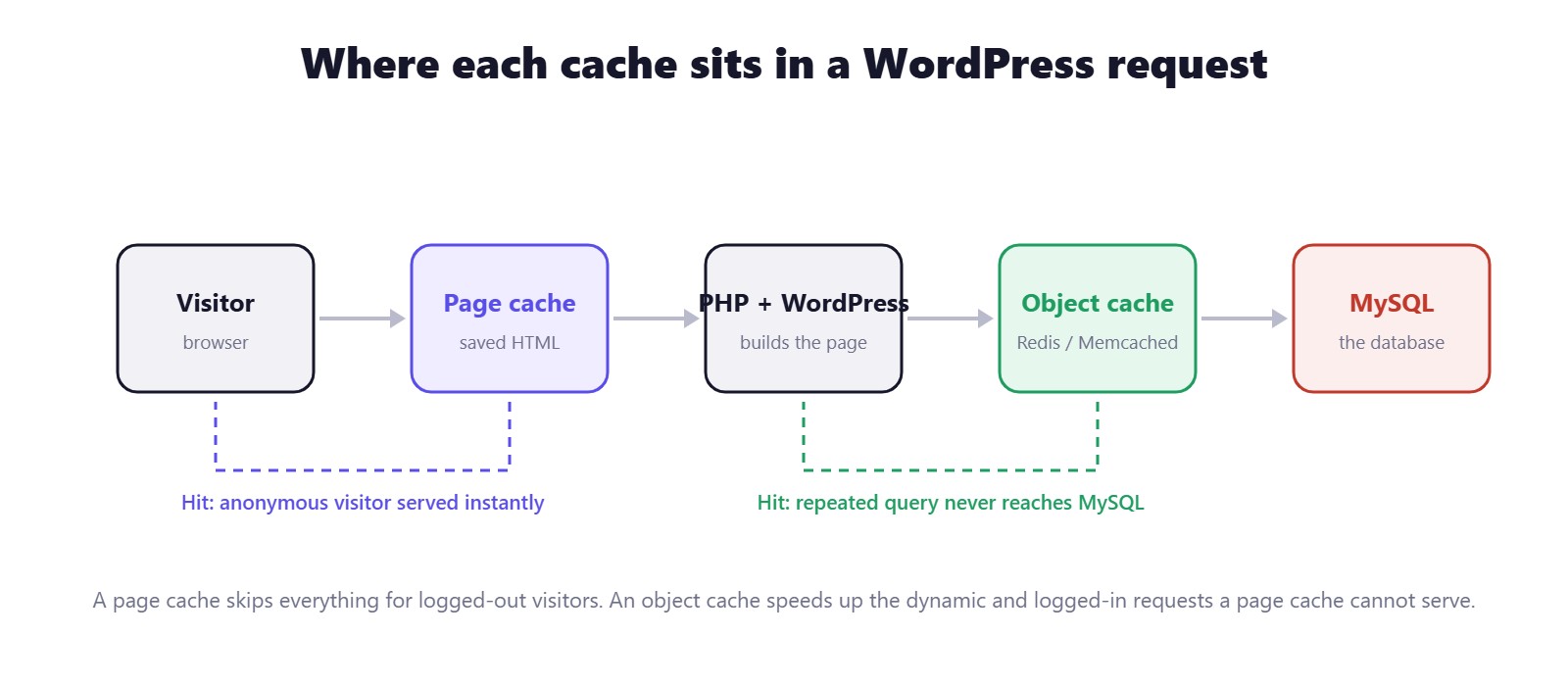
The fix that actually changes things on a database-heavy site is a persistent object cache. With Redis or Memcached in front of WordPress, repeated queries stop hitting MySQL at all. The code side of this is simple, and it is worth understanding even if a host sets it up for you:
// Instead of hitting the database on every load:
$popular = wp_cache_get( 'popular_posts', 'my_theme' );

if ( false === $popular ) {
    $popular = get_posts( array(
        'posts_per_page' => 5,
        'orderby'        => 'comment_count',
    ) );
    wp_cache_set( 'popular_posts', $popular, 'my_theme', HOUR_IN_SECONDS );
}
That pattern — check the cache, compute only on a miss, store with an expiry — is the whole idea. If your theme or plugin runs the same expensive query on every page load without it, no amount of page caching will save the logged-in experience.
Kill the N+1 queries hiding in your loops
This is the single most common performance bug I find in custom themes. A loop that shows ten posts, and inside the loop it calls get_post_meta() for each post, or worse, runs a fresh WP_Query per post. Ten posts becomes ten, twenty, fifty extra database queries — on every page load.
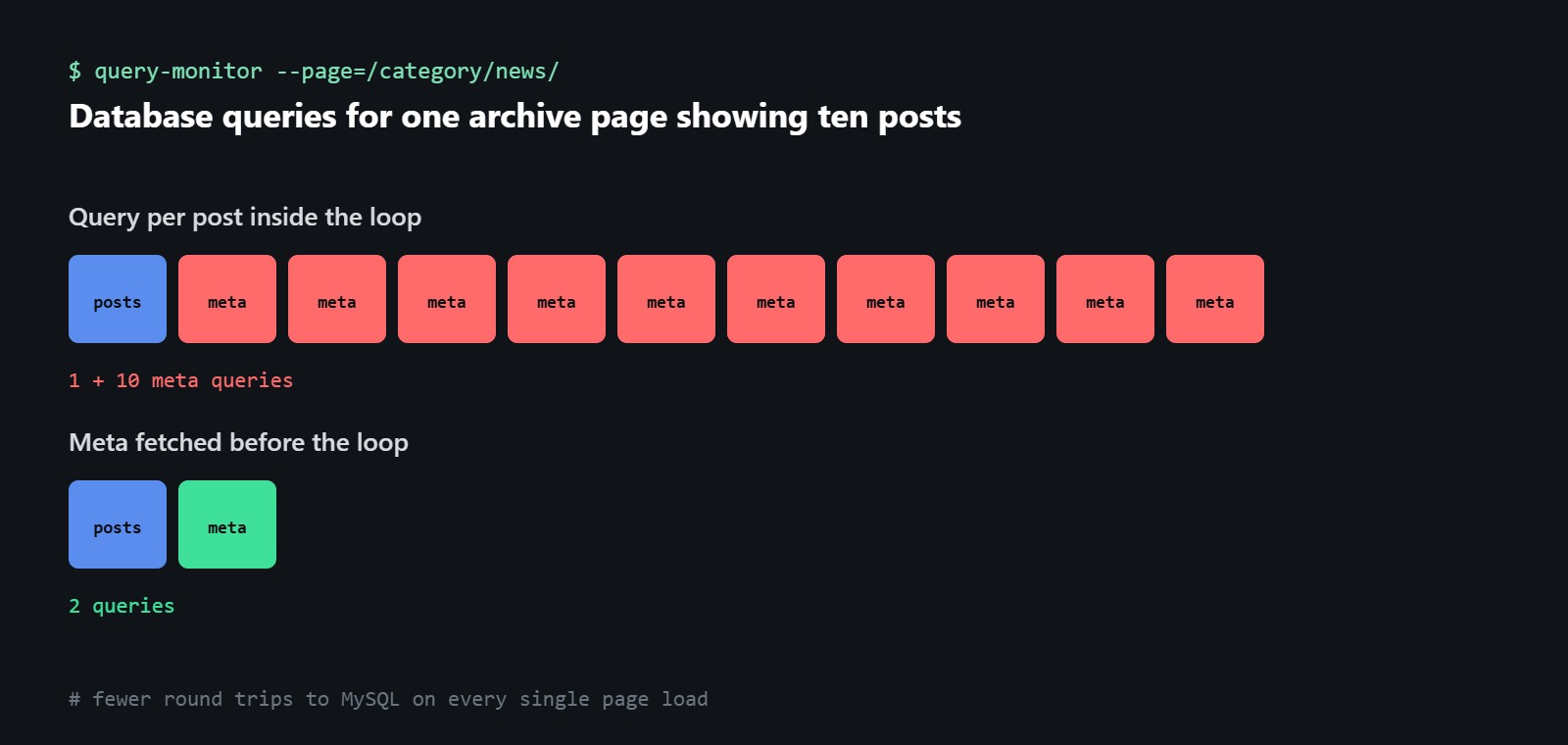
The fix is usually boring: fetch what you need before the loop, in one query. WordPress already primes the post meta cache when you use get_posts() or a normal loop in most cases, but the moment you write a custom query with 'update_post_meta_cache' => false to “save memory,” or you call get_post_meta() inside a secondary query, you have re-created the problem by hand.
A quick check: open Query Monitor and look at the query count on a category page. If it is over 100 queries for a simple archive, something in the loop is querying per post. Fix that before you buy a bigger server.
Autoloaded options: the silent 1MB tax on every request
Every WordPress request loads every option marked autoload = yes from the wp_options table into memory. Plugins love to mark their settings autoloaded, and over years that pile grows. I have seen sites autoloading over a megabyte of options — transients that never expire, old plugin settings, rows left behind by deleted plugins — on every single request, before anything else happens.
You can see the size of the problem with one query:
SELECT SUM(LENGTH(option_value)) FROM wp_options WHERE autoload = 'yes';If that number is large, the fix is to set autoload = 'no' on rows that do not need to load on every request — session data, rarely used settings, anything a plugin stuffed in there and forgot. Do it carefully, one plugin at a time, and measure after each change. This is unglamorous work. It is also the kind of thing that shows up directly in TTFB.
WP-Cron is not a real cron
Out of the box, WordPress runs scheduled tasks — publishing scheduled posts, checking for updates, sending emails — when somebody visits the site. That means a random visitor’s page load sometimes triggers a pile of background work, and the page they asked for waits for it.
On any site with real traffic, I disable the visitor-triggered cron and run it from the server instead:
// wp-config.php
define( 'DISABLE_WP_CRON', true );
Then a real server cron hits wp-cron.php every few minutes. The visitor never pays for background work again. It is a five-minute change, and on busy sites the difference in p95 load time is visible the same day.
Render-blocking assets: defer what the visitor cannot see yet
Most themes enqueue every script in the header, and the browser waits for all of it before painting anything. The fix is not to delete JavaScript — it is to load it when it is needed. For scripts that are not needed for the first paint, defer them:
add_filter( 'script_loader_tag', function( $tag, $handle ) {
    $defer = array( 'my-slider', 'my-chat-widget' );

    if ( in_array( $handle, $defer, true ) ) {
        return str_replace( ' src=', ' defer src=', $tag );
    }

    return $tag;
}, 10, 2 );
Same principle for CSS: the styles needed for the top of the page load first, the rest can wait. And for images, WordPress has generated srcset attributes since version 4.4 — if your theme is overriding image sizes or stripping them, that is a self-inflicted wound. Let the browser pick the right size.
A related point, since speed and rankings are the same conversation for most site owners: once the technical side is fixed, the on-page side still decides whether the fast page ranks. Speed gets the page into the race; the rest of the page decides where it finishes.
Transients, revisions, and the database you never clean
Transients are WordPress’s built-in cache, and they are only useful if they expire. A transient with no expiry is a row that lives in wp_options forever. Audit them the same way you audit autoloaded options.
Post revisions are the other slow leak. WordPress saves a revision every time a post is updated, and on a site edited daily for years, the posts table carries thousands of rows nobody will ever restore. Limit them:
// wp-config.php
define( 'WP_POST_REVISIONS', 5 );
Then clean the old ones once. It will not transform a fast site, but on an old, heavily edited site it removes real weight from the queries that matter.
The hosting question, answered honestly
Sometimes the fix really is the server. Shared hosting with one PHP worker means one slow request blocks everything behind it. PHP 8 with OPcache enabled is measurably faster than PHP 7 on the same code, and that upgrade is free on most decent hosts.
But I check the code first, every time. Moving a site with 200 queries per page to a bigger server just buys a faster way to run 200 queries. Fix the queries, the autoload, the cron, and the render-blocking assets first — then the hosting decision is about headroom, not rescue.
The WordPress performance order that works
If I had one afternoon on a slow WordPress site, this is the order:
- Measure with Query Monitor.
- Add a persistent object cache.
- Fix the per-post queries in the loops.
- Clean up autoloaded options.
- Move WP-Cron to the server.
- Defer the non-critical assets.
- Only then, look at hosting.
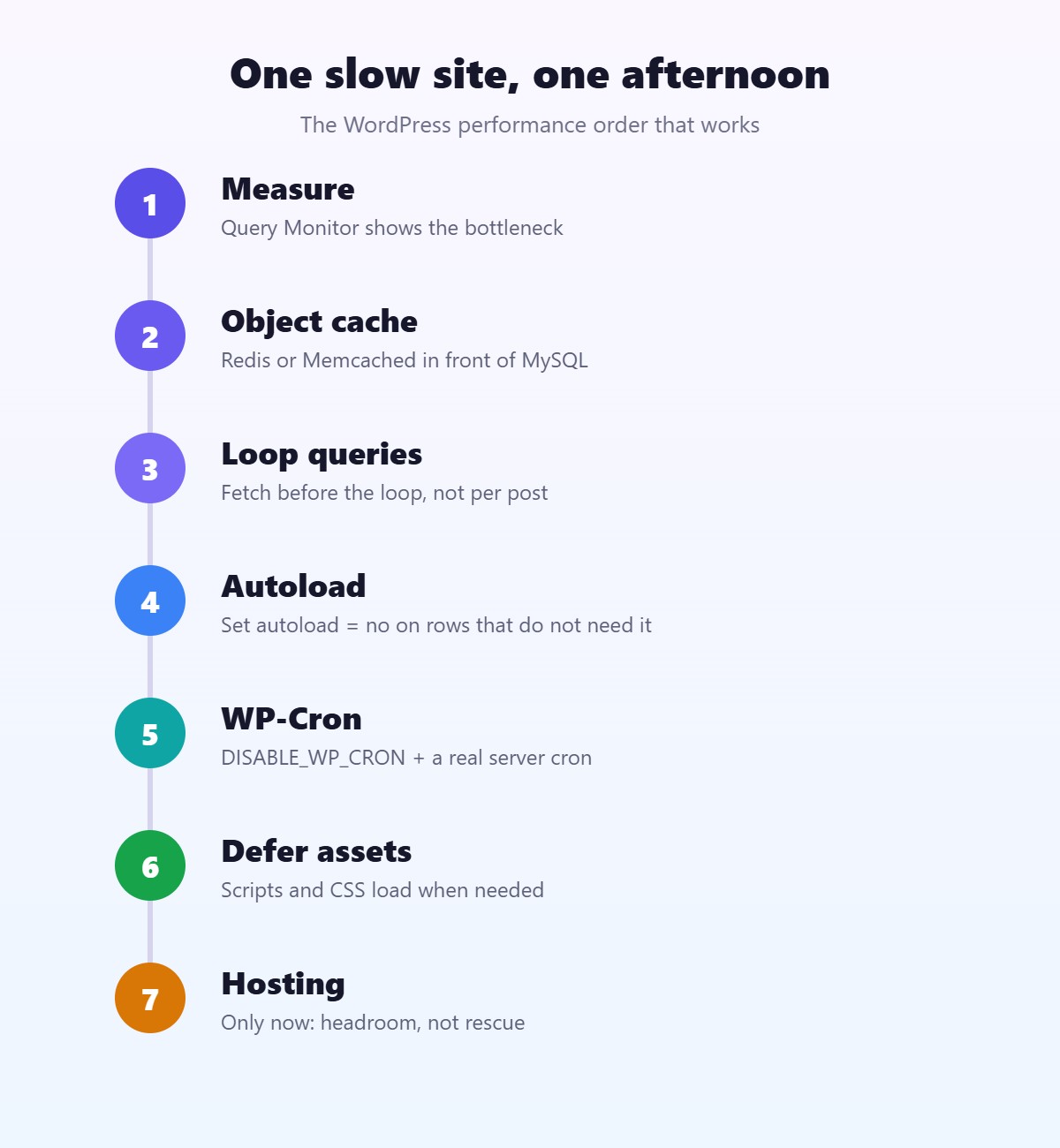
Each step is small. Together they are the difference between a site that feels instant and one that quietly loses visitors — and rankings — every day.
If you would rather have someone else do this work, our website development team builds fast WordPress sites from the start.