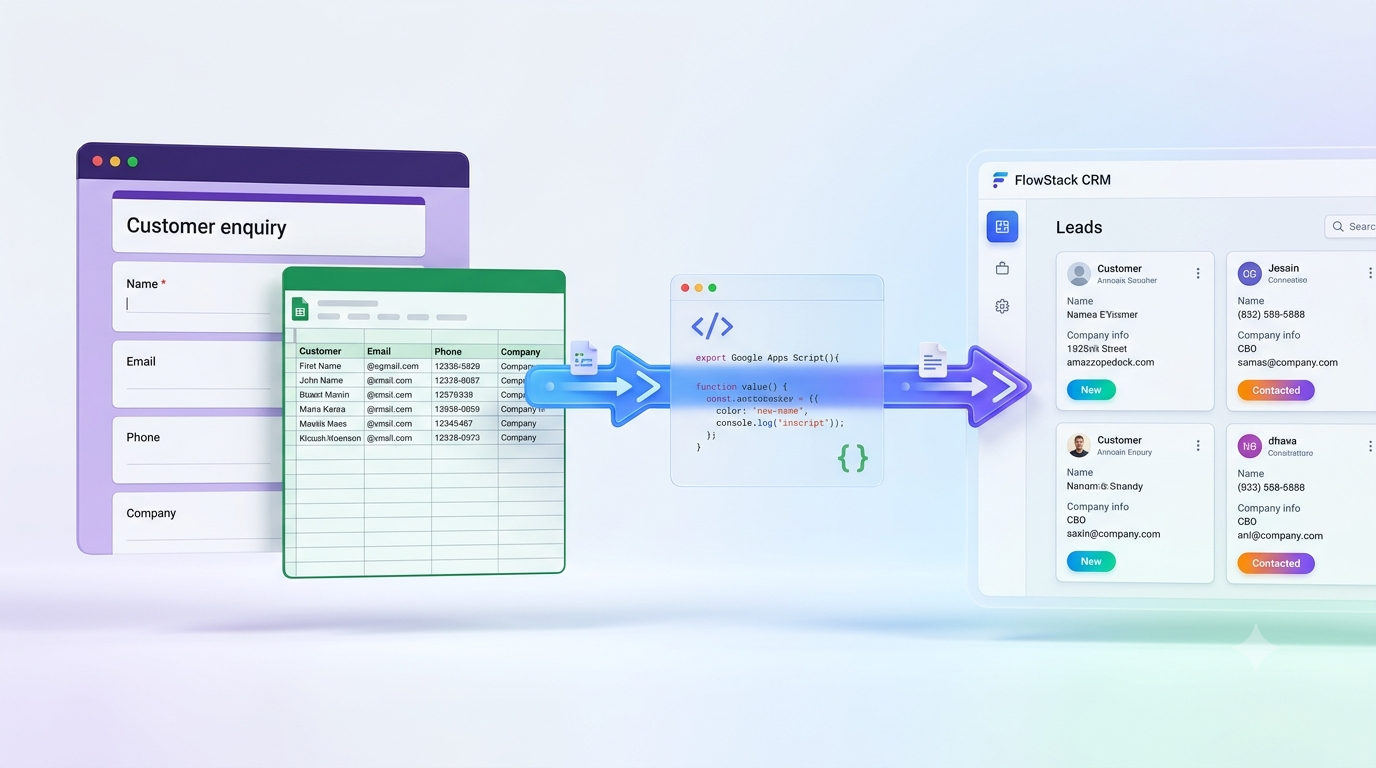
Leads that arrive in a Google Form or a shared sheet are only useful once they are in front of the person who follows up. This script does the hand-over for you: every new row becomes a lead in FlowStack CRM within five minutes, and the sheet shows which rows have gone across.
What the script does
- Reads the first sheet and matches the columns by their headings: First name, Last name, Email, Phone, Company and Notes.
- Creates one lead in FlowStack CRM for each new row, with the source set to Web Site.
- Writes “Sent” and the time into a CRM status column, so no row is ever sent twice.
- When something is wrong, such as a wrong sign-in or no credits left, it writes the reason next to the row, stops, and tries again on the next run.
The code and how to set it up
Google Sheet or Form to FlowStack CRM
Sends every new row of a sheet (for example the responses of a Google Form) to FlowStack CRM as a lead, and writes the result next to the row.
/**
 * Google Sheet -> FlowStack CRM leads
 * Sends every new row of the first sheet to FlowStack CRM as a lead.
 *
 * Set-up (once):
 * 1. Row 1 holds the headings: First name | Last name | Email | Phone | Company | Notes
 *    (any order, other columns are ignored). The script adds a "CRM status" column itself.
 * 2. Project Settings > Script properties: add CRM_EMAIL and CRM_PASSWORD
 *    (the sign-in of your FlowStack CRM user).
 * 3. Run install() once and approve the permissions.
 * Each lead uses one CRM credit.
 */
const CRM_API = 'https://app.flowstack.space/api/';
const STATUS_HEADING = 'CRM status';

// Sheet heading (lower case) -> CRM lead field.
const FIELD_MAP = {
  'first name': 'first_name',
  'last name': 'last_name',
  'email': 'email',
  'phone': 'phone_mobile',
  'company': 'account_name',
  'notes': 'description',
};

/** Run once: checks the sheet every 5 minutes and on every form submission. */
function install() {
  ScriptApp.getProjectTriggers().forEach(function (t) { ScriptApp.deleteTrigger(t); });
  ScriptApp.newTrigger('sendNewRows').timeBased().everyMinutes(5).create();
  ScriptApp.newTrigger('sendNewRows').forSpreadsheet(SpreadsheetApp.getActive()).onFormSubmit().create();
  sendNewRows();
}

function sendNewRows() {
  const lock = LockService.getScriptLock();
  if (!lock.tryLock(1000)) return; // another run is still working
  try {
    const sheet = SpreadsheetApp.getActive().getSheets()[0];
    const data = sheet.getDataRange().getValues();
    if (data.length < 2) return;
    const head = data[0].map(function (h) { return String(h).trim().toLowerCase(); });
    let statusCol = head.indexOf(STATUS_HEADING.toLowerCase());
    if (statusCol < 0) {
      statusCol = head.length;
      sheet.getRange(1, statusCol + 1).setValue(STATUS_HEADING);
    }
    for (let r = 1; r < data.length; r++) {
      if (String(data[r][statusCol] || '').indexOf('Sent') === 0) continue; // already in the CRM
      const lead = { lead_source: 'Web Site', status: 'New' };
      head.forEach(function (h, c) {
        const value = String(data[r][c] === undefined ? '' : data[r][c]).trim();
        if (FIELD_MAP[h] && value) lead[FIELD_MAP[h]] = value;
      });
      if (!lead.first_name && !lead.last_name && !lead.email) continue; // empty row
      if (!lead.last_name) { // the CRM needs a last name
        lead.last_name = lead.first_name || lead.email;
        if (lead.last_name === lead.first_name) delete lead.first_name;
      }
      try {
        crm('save', { module: 'Leads', record: lead });
        const when = Utilities.formatDate(new Date(), Session.getScriptTimeZone(), 'yyyy-MM-dd HH:mm');
        sheet.getRange(r + 1, statusCol + 1).setValue('Sent ' + when);
      } catch (e) {
        // Stop here and try again on the next run (wrong sign-in, no credits, CRM not reachable).
        sheet.getRange(r + 1, statusCol + 1).setValue('Failed: ' + e.message);
        break;
      }
    }
  } finally {
    lock.releaseLock();
  }
}

/** Calls one CRM action, signing in first when there is no session or it has ended. */
function crm(action, body) {
  const props = PropertiesService.getScriptProperties();
  for (let attempt = 0; attempt < 2; attempt++) {
    let token = props.getProperty('CRM_TOKEN');
    if (!token) {
      const login = post('login', { email: props.getProperty('CRM_EMAIL'), password: props.getProperty('CRM_PASSWORD') });
      if (!login.body.ok) throw new Error(login.body.error || 'Sign-in failed');
      token = login.body.token;
      props.setProperty('CRM_TOKEN', token);
    }
    const res = post(action, body, token);
    if (res.code === 401) { props.deleteProperty('CRM_TOKEN'); continue; } // session ended: sign in again
    if (!res.body.ok) throw new Error(res.body.error || 'HTTP ' + res.code);
    return res.body;
  }
  throw new Error('Could not sign in to the CRM');
}

function post(action, body, token) {
  const res = UrlFetchApp.fetch(CRM_API + action, {
    method: 'post',
    contentType: 'application/json',
    payload: JSON.stringify(body),
    headers: token ? { Authorization: 'Bearer ' + token } : {},
    muteHttpExceptions: true,
  });
  let json = {};
  try { json = JSON.parse(res.getContentText()); } catch (e) { /* not JSON: handled by the caller */ }
  return { code: res.getResponseCode(), body: json };
}- Open the sheet, then Extensions > Apps Script, and paste the code over what is there.
- Make sure row 1 has the headings First name, Last name, Email, Phone, Company and Notes (any order; other columns are ignored).
- Under Project Settings > Script properties add CRM_EMAIL and CRM_PASSWORD, the sign-in of your FlowStack CRM user.
- Run the install function once and approve the permissions. New rows are sent every five minutes, and at once when a form is submitted.
Good to know
- You need a FlowStack CRM account, which is free to start. Each lead uses one credit.
- The sign-in is kept in Script properties, not in the code, so you can share the sheet without sharing the password. Use a CRM user made for this job.
- The leads belong to the CRM user whose sign-in the script uses.
- To send more columns, add their headings to FIELD_MAP at the top of the script.
Want it adapted?
We write Apps Script for businesses that run on Google Workspace. If you need other columns, another trigger or a different tool at the other end, tell us what the script should do.
2 comments